
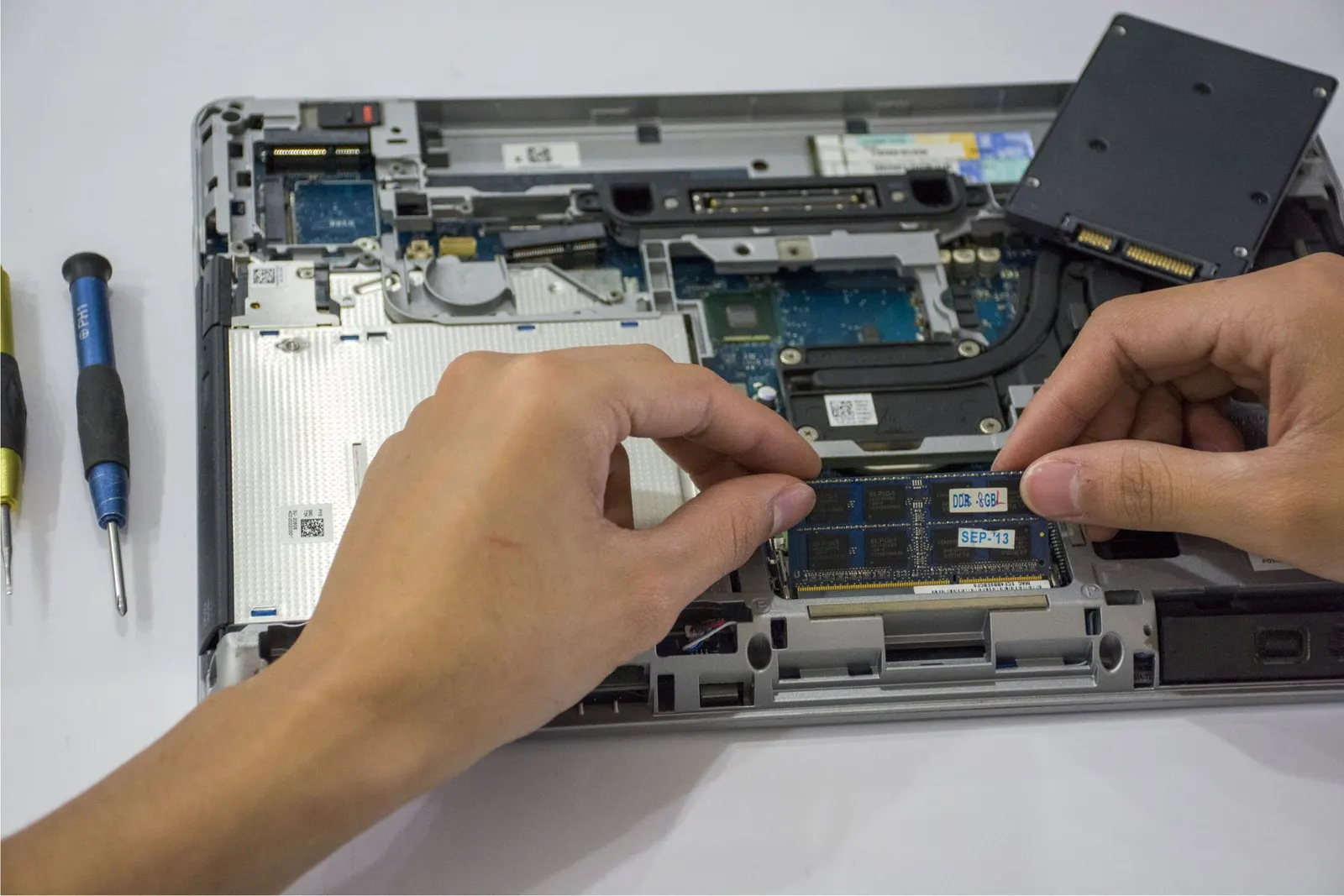
A laptop touchpad not working is one of the most common faults we see on laptops, and it is often easier to fix than it looks. The pointer may not move at all, it may jump around, clicks may stop registering while movement still works, or gestures such as two-finger scrolling may suddenly disappear. Very often the touchpad has simply been switched off by a key press or a setting. In other cases the driver has failed after an update, a liquid spill has reached the touchpad, or something inside the laptop, such as a swelling battery, is pressing on it. This guide walks through the checks in the order we use them, so you can tell a setting problem from a hardware fault.
First, Note Exactly What Is Happening
The symptom points to the likely cause:
- Nothing works at all, no movement and no clicks. The touchpad is probably turned off in Windows or with a function key, the driver has a problem, or the touchpad cable inside is loose or damaged.
- The pointer moves but clicking does not work. Tap-to-click may be turned off, or the physical click mechanism is worn or blocked.
- The pointer jumps, drifts or moves by itself. Dirt, moisture or grease on the surface, a charger fault, or a touchpad that is being pushed up from below can all cause this.
- The touchpad looks raised, is hard to click, or the case has a gap. Stop and read the battery section below before doing anything else.
- It stopped after a drink spill. Switch the laptop off and follow our laptop water spill guide first.
While you troubleshoot, a USB or wireless mouse lets you keep using the laptop. Plugging one in is also a quick test: if the mouse works normally, Windows itself is responding and the problem is limited to the touchpad.
How to Fix a Laptop Touchpad That Is Not Working
Work through these steps in order. Try the touchpad after each one.
- Restart the laptop. Use Start, Power, Restart rather than just closing the lid. A restart reloads the touchpad driver and clears many temporary glitches. Without a pointer, press the Windows key, then use Tab and the arrow keys to reach the power button, or press Ctrl + Alt + Delete and use the power icon in the corner.
- Check the touchpad key. Many laptops have a key in the top row with a touchpad symbol that turns the touchpad on and off, either on its own or together with the Fn key. It is easy to press by accident. Press it once and test again. Some models instead have a small light or double-tap area in the corner of the touchpad that toggles it.
- Turn the touchpad on in Settings. In Windows 11, press Windows + I to open Settings, go to Bluetooth & devices, then Touchpad, and make sure the Touchpad switch is On. Dell's guide Disabling or enabling the touchpad shows the same path, which applies to Windows 11 laptops from any brand. You can reach it with the keyboard alone by pressing the Windows key, typing touchpad settings and pressing Enter.
- Check the mouse setting. Next to the Touchpad switch is an option called Leave touchpad on when a mouse is connected. If it is cleared, the touchpad turns off whenever a mouse is connected. Dell notes that even the receiver of a wireless mouse that is switched off can be enough to disable the touchpad, so unplug any mouse receivers or tick the option.
- Check tap and gesture settings. If the pointer moves but taps do nothing, open the Taps section on the same Touchpad page and turn on tapping with a single finger. Scrolling and three-finger gestures have their own sections there too.
- Update the touchpad driver. Microsoft's page Fix touchpad problems in Windows recommends getting updated drivers through Windows Update first. Open Settings, Windows Update, check for updates, and look under Advanced options, Optional updates for driver updates.
- Reinstall the driver in Device Manager. Right-click Start and open Device Manager. Microsoft says the touchpad is listed under Human Interface Devices or Mice and other pointing devices. Right-click it, choose Uninstall device, then restart. According to Microsoft, reinstalling makes Windows download the latest driver from Windows Update.
- Install the maker's own driver. If the touchpad still fails, download the touchpad or chipset driver for your exact model from the laptop maker's support site. Microsoft's last step is to contact the device manufacturer when updating or reinstalling does not help.
- Check the BIOS setting. On some laptops the touchpad (sometimes called the internal pointing device) can be turned off in the BIOS or UEFI setup. The key to open it and the menu names differ by brand, so check your model's manual. If the touchpad works in the BIOS screens but not in Windows, the fault is almost certainly in Windows or the driver, not in the hardware.
Check the Surface and the Charger
Touchpads sense your finger through small changes in electrical charge, so anything on the surface can confuse them. Switch the laptop off and wipe the touchpad with a soft, slightly damp lint-free cloth, then dry it. Do not spray liquid onto it. Use the touchpad with clean, dry hands. If the pointer behaves badly only while the charger is plugged in, try a different socket or the original charger. A faulty or poorly earthed adapter can cause erratic pointer movement, and our guide on laptop battery and charger problems covers adapter checks in more detail.
When the Battery Is the Problem
On many laptops the battery sits directly under the touchpad. When a lithium-ion battery swells, it can push the touchpad up, so it feels stiff, will not click, or clicks all the time. You may also see the base bulging or a gap opening along the edges of the case. Treat this as a safety issue. Dell's guidance on handling swollen lithium-ion batteries says to stop using the laptop, not to press on or pry at a swollen battery, and not to try to free one that is stuck. Unplug the charger, keep the laptop away from heat and anything flammable, and bring it in for a battery replacement. Do not keep using it until the touchpad "settles".
Other Hardware Causes
- Loose or damaged ribbon cable. The touchpad connects to the motherboard through a thin flat cable. A drop, a previous repair or a keyboard replacement can leave it loose or creased.
- Liquid damage. A spill can corrode the touchpad board or its connector. The fault sometimes appears days after the spill, once residue has dried.
- Worn click mechanism. On touchpads with a physical click, the switch underneath can wear out, or the pad can shift so it no longer presses the switch.
- Cracked touchpad or palm rest. Physical damage to the surface or the top case usually means replacing the touchpad or the top case assembly, depending on the model.
- Board-level faults. Less often, the problem is on the motherboard itself, for example a damaged connector.
How Touchpad Repair Works at Our Shop
At our Keshavpura shop we first check the settings and driver, then test the touchpad and its cable, and check the battery for swelling. The usual repair paths are:
| Finding | Typical repair |
|---|---|
| Touchpad turned off or driver fault | Fix the setting or install the correct driver for your model |
| Swollen battery pressing the touchpad | Replace the battery with one matched to your model, then check the touchpad again |
| Loose or damaged ribbon cable | Re-seat or replace the cable |
| Failed touchpad or worn click | Replace the touchpad module, or the top case where it is built in |
| Liquid damage | Clean the affected parts, then repair or replace what is damaged |
On some laptops the touchpad is a separate part held by screws; on many thin models it is reached only after removing the battery or comes as part of the top case. The exact price is confirmed after our free check-up, before any work begins. Every part repair comes with our warranty on the part and labour; the period depends on the part. If your laptop is still under the maker's warranty and has no physical or liquid damage, the maker's authorised service is worth contacting first.
Related Laptop Problems
A touchpad fault sometimes comes with other input problems. If some keys have stopped working too, see our laptop keyboard not working guide. For anything else, our laptop repair guide for Kota explains how we diagnose laptops and what to bring with you.
Bring It In If the Basics Do Not Help
If you have checked the touchpad key and the Settings switch, reinstalled the driver and cleaned the surface, and your laptop touchpad is still not working, bring the laptop and its charger to our Keshavpura shop. If the touchpad looks raised or the case is bulging, switch the laptop off and bring it in without charging it.
Frequently asked questions
Why did my laptop touchpad suddenly stop working?
The most common reasons are that it was turned off with a function key or in Settings, a mouse is connected while the touchpad is set to turn off, or the driver failed after an update. Less often, the cable is loose, liquid reached it, or a swelling battery is pushing on it.
How do I turn on the touchpad using only the keyboard?
Press the Windows key, type touchpad settings and press Enter. Use Tab and the arrow keys to reach the Touchpad switch and press Space to turn it on. On many laptops a key in the top row, alone or with Fn, also toggles the touchpad.
Why does my touchpad move but not click?
Tap-to-click may be turned off. In Windows 11 open Settings, Bluetooth & devices, Touchpad, Taps, and turn on tapping with a single finger. If the physical click does not work either, the click mechanism may be worn or blocked, or a swollen battery may be pressing the touchpad.
Can a swollen battery stop the touchpad working?
Yes. On many laptops the battery sits under the touchpad, and a swelling battery can push it up so it will not click or clicks constantly. Stop using the laptop, do not press on the bulge, unplug the charger and bring it in for a battery replacement.
Is a laptop touchpad repairable?
Usually. Settings and driver faults need no parts. A loose cable can be re-seated, and a failed touchpad can be replaced. On some thin laptops the touchpad comes as part of the top case. We confirm the part and the exact price after a free check-up.
Questions & comments
Ask our Kota technicians anything about this repair. All posts are reviewed before they appear. For an urgent quote, WhatsApp us.
No comments yet, be the first to ask a question.
Leave a comment or ask a question
First, verify your email. We send a 6-digit code so we know you are a real person. Your email is never shown publicly.
Enter the 6-digit code we emailed to .