
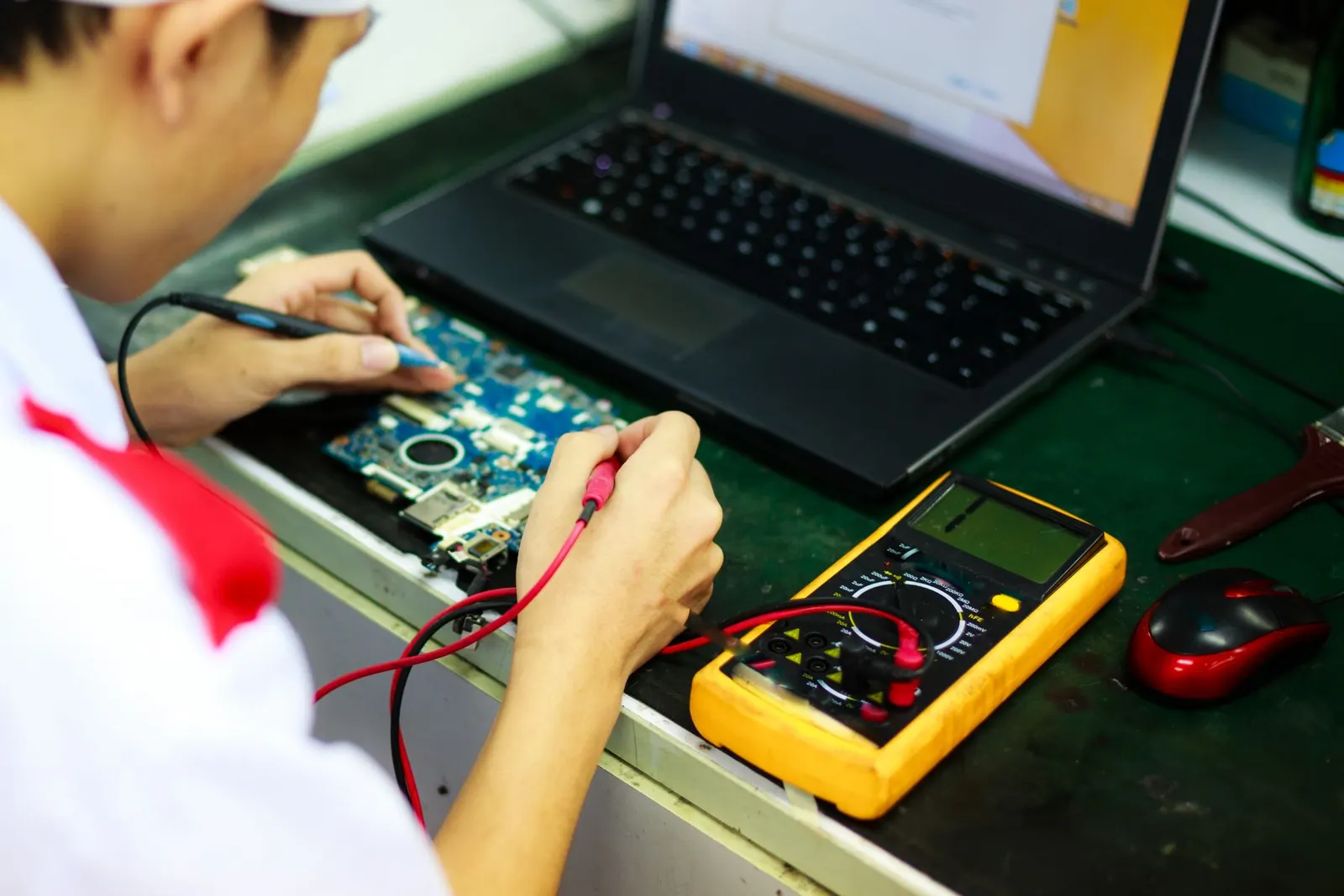
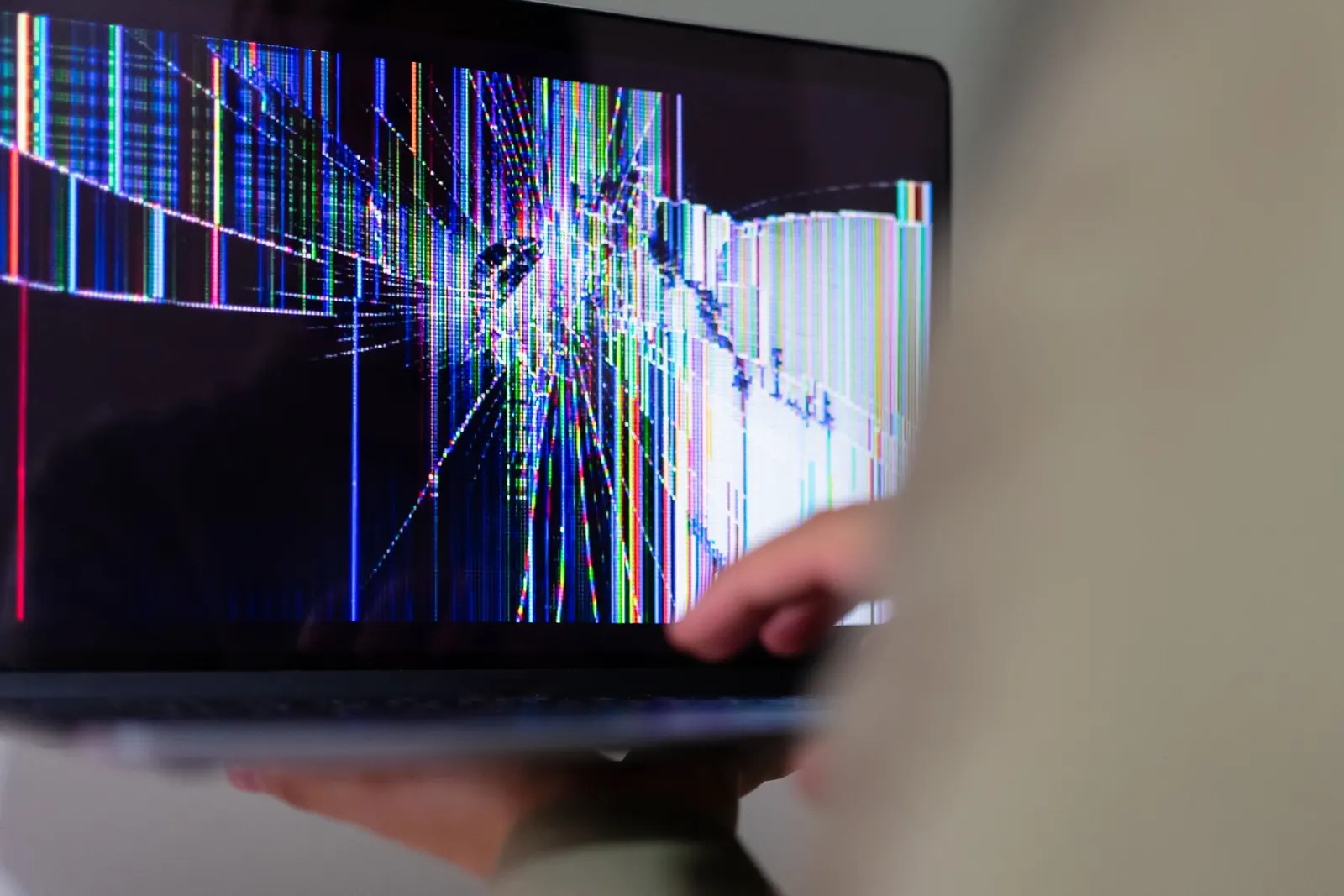
A flickering laptop screen is distracting at best and impossible to work on at worst. The flicker might be a quick flash every few minutes, constant shimmering, horizontal lines, or a screen that goes dark and comes back when you move the lid. The cause can be anything from a simple Windows setting to a damaged display cable. Before spending money on a new screen, it is worth running a few checks, because a good number of the flickering laptops brought to our Keshavpura shop turn out to need a software fix or a cable rather than a new panel.
Step 1: Software or Hardware? The Task Manager Test
Microsoft's own troubleshooting advice starts with a simple test, and it is a good one. Press Ctrl + Shift + Esc to open Task Manager and watch it for a minute:
- If Task Manager flickers along with everything else, the cause is most likely the display driver or the hardware.
- If Task Manager does not flicker but other windows do, an app is most likely causing it. Think about what you installed or updated just before the flicker started.
You can read the full steps on Microsoft's page Troubleshoot screen flickering in Windows.
Step 2: Quick Fixes to Try First
Reset the graphics driver
Press the Windows key + Ctrl + Shift + B together. The screen goes black for a moment and the graphics driver restarts. Microsoft lists this as a first step, and it sometimes clears flicker straight away. If it does not help, do a full restart.
Update or roll back the display driver
If the flicker began after a Windows update, the display driver may be the problem. Open Device Manager, expand Display adapters, right-click your graphics adapter and check for a driver update. If the flicker started right after a driver update, use Roll back driver in the adapter's Properties instead. Laptop makers such as HP, Dell and Lenovo also provide drivers tested for your exact model on their official support sites, and these are often the most reliable choice.
Check the refresh rate
Go to Settings, System, Display, Advanced display and look at the refresh rate. If it was changed, or if the laptop has a dynamic refresh rate option, try setting it to the panel's standard value. An incorrect setting can cause visible flicker on some panels.
Test brightness and power settings
On some laptops, flicker appears only at low brightness, or only on battery. Adaptive brightness and content-based brightness features can also cause shifting light levels that look like flicker. Try turning these off and setting brightness manually. If the flicker happens only when the charger is plugged in, try a different socket and, if available, a known-good original charger, because a faulty charger or earthing problems can show up as screen noise.
Remove the app causing it
If the Task Manager test pointed to an app, update it or uninstall it temporarily. Screen-recording tools, older antivirus programs and some graphics overlays are common suspects.
Step 3: Check With an External Monitor
If you have access to a monitor or TV with HDMI, connect it. This is the clearest test of all:
- External screen is perfect, laptop screen flickers: the fault is in the laptop's own display path, meaning the panel, the display cable, or the connector.
- Both screens flicker or show the same lines: the problem is earlier, in the graphics driver or the graphics chip on the motherboard.
Step 4: The Lid Movement Test
Slowly open and close the lid between roughly 45 and 120 degrees while watching the screen. If the flicker, lines or blackouts change as the lid moves, the display cable is very likely damaged or loose, usually where it passes through the hinge area. A loose or cracked hinge makes this worse, because it lets the cable flex and twist more every time the lid moves. If your hinge also feels loose, see our keyboard and hinge repair service page.
Also press very gently on the bottom edge of the screen bezel. If the image changes, a connector or the panel itself is suspect. Do not press hard; LCD panels are fragile.
Common Hardware Causes
| Symptom | Likely cause |
|---|---|
| Flicker changes when you move the lid | Display cable worn or loose, often near the hinge |
| Coloured or white vertical lines, fixed in place | Display panel fault |
| Same lines on laptop and external monitor | Graphics chip or motherboard fault |
| Flicker only after the laptop gets hot | Graphics overheating or a weak solder joint; check cooling |
| Screen dims, flickers, then goes very dark but image faintly visible | Backlight or backlight circuit fault |
| Flicker started after a drop or pressure in a bag | Panel damage or connector knocked loose |
Heat deserves a special mention for Kota, where summer temperatures put real stress on laptops. If the flicker appears only after gaming or long video calls, clean the vents and check whether the fan is working. Our laptop overheating guide explains what to look for.
What a Repair Involves
When you bring a flickering laptop to us, we first confirm whether the fault is software, cable, panel or board, using an external monitor and a known-good test panel or cable where possible. This matters because replacing a screen when the real problem is the cable wastes your money, and the flicker comes straight back.
- Display cable: replaced or reseated. Usually the simplest hardware repair.
- Panel: replaced with a compatible panel matching your laptop's connector, resolution and refresh rate. See our laptop screen replacement guide and our laptop screen replacement service for how panel choice works.
- Graphics or board fault: needs chip-level diagnosis. Our laptop motherboard repair page explains what that involves.
- Software: if the issue is a corrupted driver or Windows installation, a clean driver reinstall or, if needed, a fresh Windows installation solves it without any parts.
The exact price is confirmed after our free check-up, once we know which of these is the actual cause. Every part repair comes with our warranty on the part and labour; the period depends on the part.
Phone Screen Flickering Too?
Phones flicker for some similar and some very different reasons, mainly related to OLED panels and brightness control. If it is your phone rather than your laptop, read our separate guide on why phone screens flicker.
Bring It In If the Basics Do Not Help
If you have reset the driver, updated or rolled it back, checked the refresh rate and the flicker is still there, or if it changes when you move the lid, it is time for a hands-on check. Bring your laptop to our Keshavpura shop for a free diagnosis, and we will tell you exactly which part is at fault before any work begins.
Frequently asked questions
Why is my laptop screen flickering suddenly?
The most common sudden causes are a display driver problem after a Windows or driver update, a recently installed app, or a display cable that has started to wear near the hinge. The Task Manager test and an external monitor test help you narrow it down.
Can a laptop screen flicker be fixed without replacing the screen?
Often, yes. Driver resets, driver updates or rollbacks, refresh rate changes and replacing a worn display cable fix many flickering screens. The panel needs replacement only when the fault is in the panel itself, which we confirm with testing first.
My laptop screen flickers only when I move the lid. What does that mean?
That almost always points to the display cable or its connector, usually where the cable runs through the hinge. A loose or broken hinge can strain the cable. Getting it checked early can prevent the cable or the panel from failing completely.
Is a flickering screen harmful to keep using?
It will not usually damage the laptop further if the cause is software. If the cause is a worn cable or panel, it tends to get worse over time and can end in a blank screen. Back up your files and get it checked.
Questions & comments
Ask our Kota technicians anything about this repair. All posts are reviewed before they appear. For an urgent quote, WhatsApp us.
No comments yet, be the first to ask a question.
Leave a comment or ask a question
First, verify your email. We send a 6-digit code so we know you are a real person. Your email is never shown publicly.
Enter the 6-digit code we emailed to .