
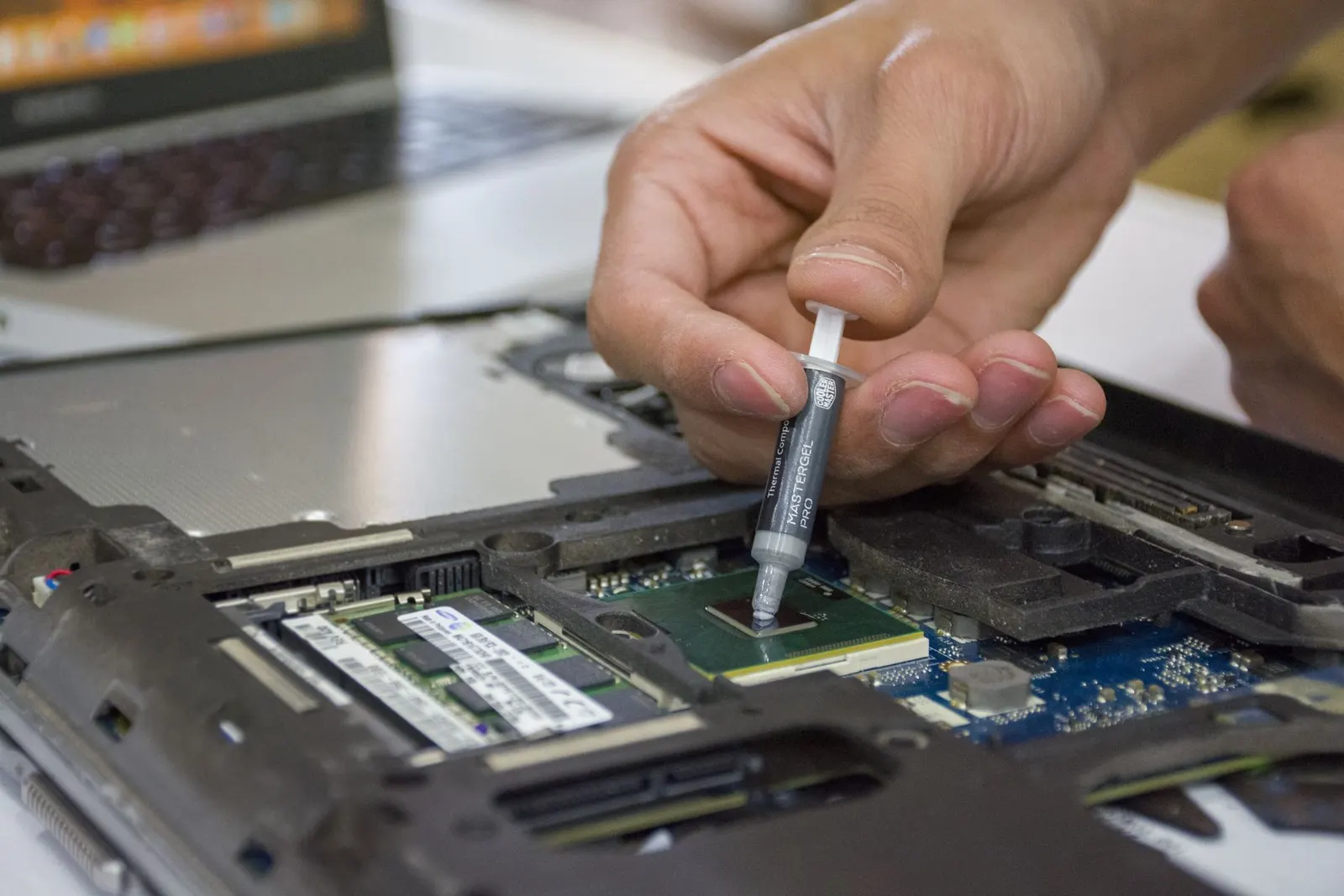
A laptop that burns your lap, shuts down randomly, or sounds like it is about to take flight is telling you something important: its cooling system is struggling. This is especially common in Kota, where summer temperatures regularly push above 40°C and dust levels are high. At our Keshavpura shop, laptop overheating and fan noise are among the top reasons people walk in during April through June.
Why Laptops Overheat
Laptops generate significant heat from the processor and graphics chip. That heat is moved away by a copper heat pipe, then blown out through vents by a small fan. Over time, two things go wrong:
- Dust blocks the vents and the fan heatsink fins. Even thin layers of dust dramatically reduce airflow. In Kota's dusty environment, this can happen within a year of purchase.
- Thermal paste dries out. The tiny layer of thermal paste between the CPU/GPU chip and the copper heat pipe dries and cracks over 3-5 years, losing its heat-transfer efficiency by up to 50%.
A less common cause is a failing fan, the bearings wear out and the fan either slows down or stops entirely, which triggers immediate thermal shutdown.
What You Can Safely Check Yourself
- Check the exhaust vent. Hold your hand near the side or rear vent while the laptop is under load. If you feel little or no air, the vent is blocked with dust.
- Keep the laptop on a hard, flat surface. Fabric surfaces (beds, sofas, your lap) block the air intake on the base. A cheap laptop stand makes a big difference.
- Check Task Manager. On Windows, open Task Manager and look at CPU usage. If something is using 80-100% CPU constantly (an update, a background app), the processor will generate far more heat than normal.
- Adjust the power plan. In Windows Power Settings, switching from High Performance to Balanced reduces heat immediately without much impact on daily tasks.
When to Bring It to Us
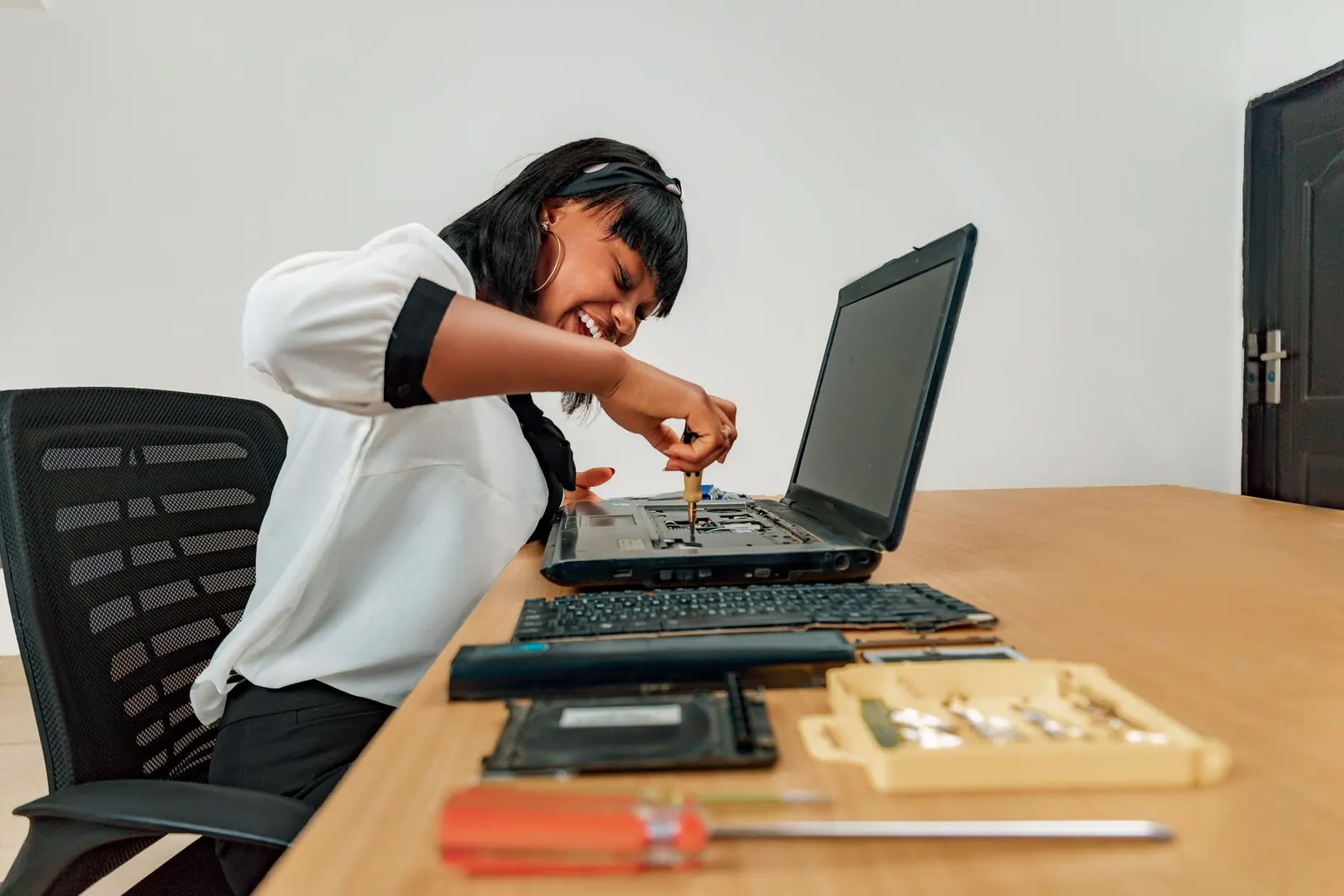
If the laptop still runs very hot after making the above changes, it almost certainly needs a physical clean and thermal paste replacement. This is not something you should attempt at home without experience, the thermal paste needs to be the right type and applied in the correct quantity, and the internals are easy to damage if you are not familiar with the model.
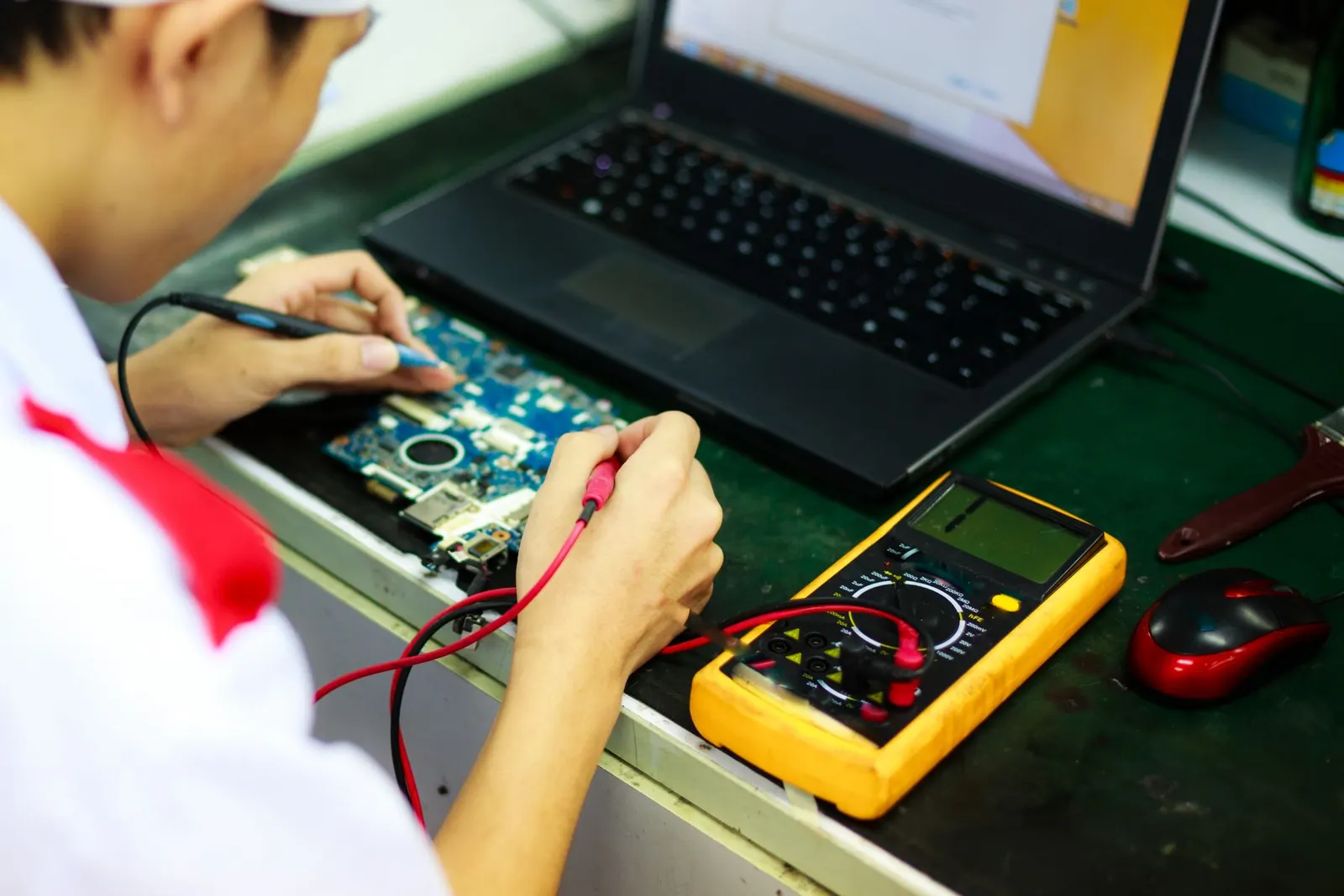
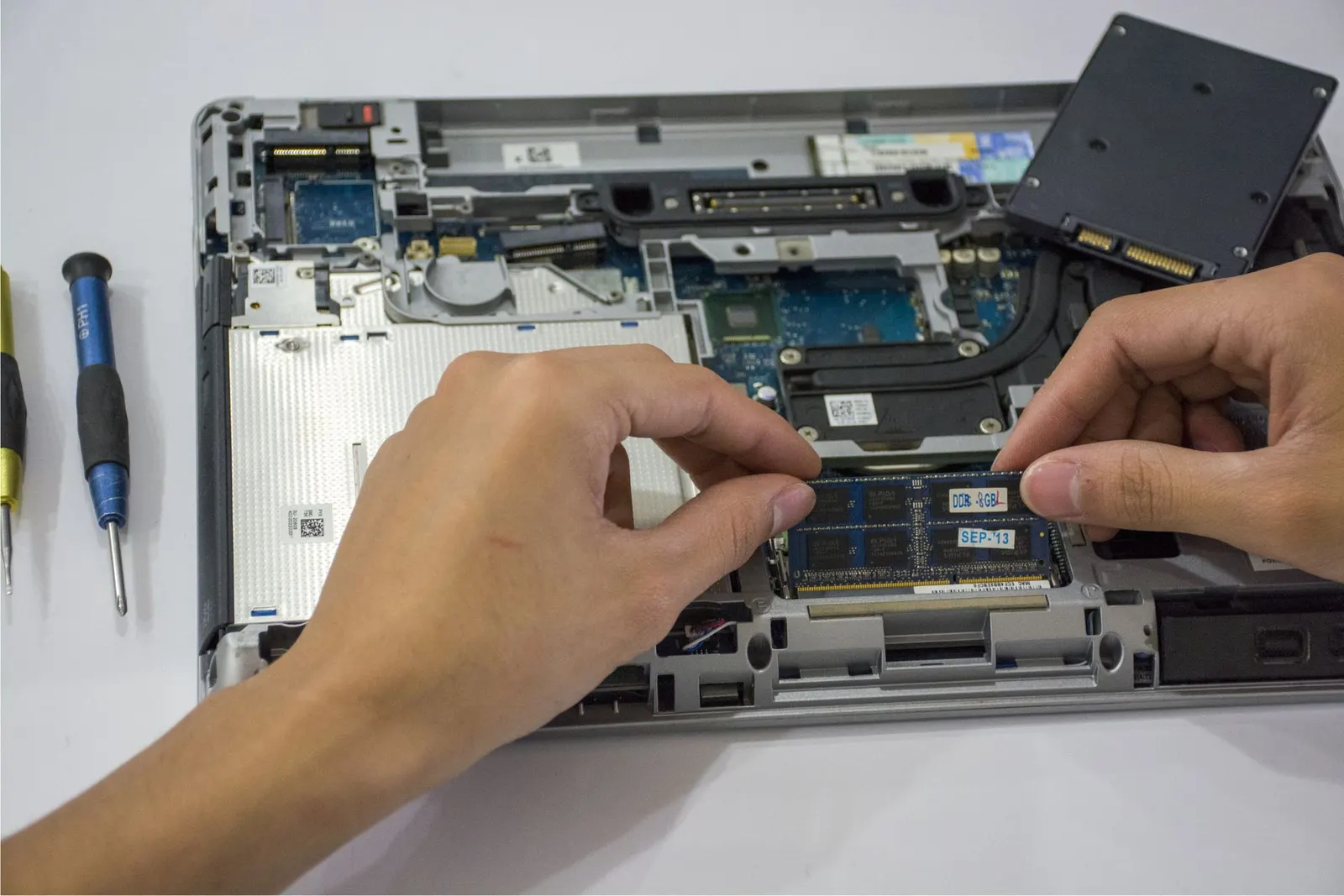
Our technicians disassemble the laptop, clean all dust from the fan, heatsink fins, and vents with compressed air and brushes, apply fresh high-quality thermal compound, and reassemble. Most customers report a drop of 15-25°C in CPU temperature after this service, the laptop becomes quieter and faster as a bonus, because modern processors reduce their speed automatically when too hot.
Typical Service Costs
| Service | Typical Cost Range |
|---|---|
| Internal dust clean and thermal paste | ₹600 - ₹1,500 |
| Fan replacement (if failed) | ₹800 - ₹2,500 |
| Heat pipe replacement | ₹1,200 - ₹3,500 |
The exact cost depends on the laptop model and how accessible the internals are. Slim ultrabooks take longer to disassemble safely and cost a little more in labour. Exact pricing is confirmed after a free check.
How Often Should You Get It Done?
For a laptop used daily in Kota, where dust and heat are factors year-round, we recommend a thermal service every 18-24 months. Older laptops (3 years or more) that have never been cleaned internally are often running 20-30°C hotter than they should be, which shortens the life of every component inside.
If your laptop is throttling, shutting down, or sounding like a hairdryer, do not ignore it, bring it to our Keshavpura shop for a free check before the heat causes permanent damage to the motherboard.
Frequently asked questions
My laptop shuts down suddenly after 30 minutes of use. Is that overheating?
Almost certainly. Modern laptops have a thermal protection feature that shuts the machine down to prevent CPU or GPU damage when temperature exceeds a safe limit. A cleaning and thermal paste service usually resolves this completely.
Will a cooling pad help instead of getting it serviced?
A cooling pad helps slightly, but it cannot fix blocked internal vents or dried thermal paste. Think of it like putting ice on a blocked radiator, it treats the symptom, not the cause. Internal cleaning is the proper fix.
Can overheating damage my data or hard drive?
Sustained high temperatures can shorten the life of an HDD, and in extreme cases cause data errors. SSDs are more tolerant of heat but still benefit from a cooler operating environment.
Is the cleaning service done the same day?
For most standard laptops, yes, the thermal clean is a 1-2 hour job and we aim to complete it the same day at our Kota shop.
Questions & comments
Ask our Kota technicians anything about this repair. All posts are reviewed before they appear. For an urgent quote, WhatsApp us.
No comments yet, be the first to ask a question.
Leave a comment or ask a question
First, verify your email. We send a 6-digit code so we know you are a real person. Your email is never shown publicly.
Enter the 6-digit code we emailed to .