
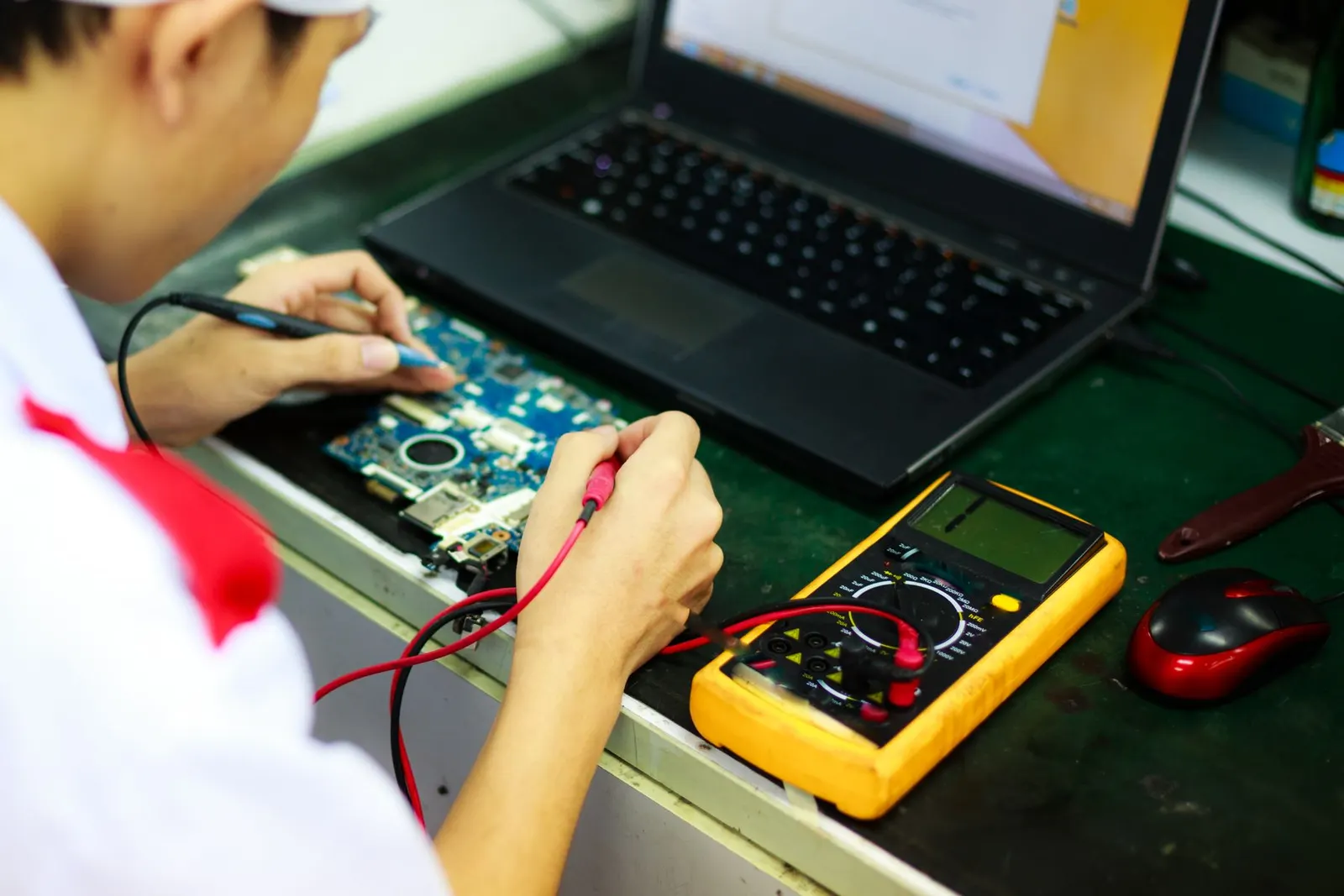
Laptop WiFi not showing any networks, even though your phone can see the router right next to it. Or the Wi-Fi button has vanished from the taskbar and Settings, leaving only Ethernet or nothing at all. Both problems look alarming, but the cause is often a setting, a disabled adapter or a driver rather than broken hardware. This guide takes you through the checks in a sensible order, starting with the quick ones, so you can tell a software fault from a real hardware fault before you pay for any repair.
First, Which Problem Do You Have?
The fixes depend on what you actually see, so start by matching your laptop to one of these three cases:
- The Wi-Fi option is there, but the list of networks is empty. The adapter is working at some level, but it is not finding or not allowed to scan for networks. Airplane mode, a hardware switch, a band mismatch or a driver are the usual causes.
- Some networks show, but not yours. This often points to the router, the band (2.4 GHz or 5 GHz) or the distance, rather than the laptop.
- The Wi-Fi option is missing completely. Windows cannot see a working wireless adapter. The adapter may be disabled, its driver may have failed, or the Wi-Fi card itself may have a fault.
Microsoft's own page Fix Wi-Fi connection issues in Windows covers all of these, and the steps below follow its order, with notes from what we check on laptops at our Keshavpura shop.
Quick Checks That Fix Many Cases
- Turn Airplane mode off. Open Settings, Network & internet and make sure Airplane mode is off. Some laptops have a function key with an aeroplane or antenna symbol that toggles it, and it is easy to press by accident.
- Check for a hardware wireless switch. Some laptops, especially older business models, have a small slider on the side or front edge, or a key combination, that cuts the radio. Microsoft lists this as a first check when the Wi-Fi option is missing.
- Restart the laptop properly. Use Restart rather than Shut down, because Windows Fast Startup can keep a stuck driver state across a normal shutdown.
- Restart the router. If other devices also cannot see the network, the router is the problem, not the laptop. Unplug it for a short while and plug it back in.
- Run the network troubleshooter. In Windows 11, the Get Help app has a network and internet troubleshooter that can reset common settings automatically.
When the Wi-Fi Option Is Missing
If there is no Wi-Fi tile in Quick Settings and no Wi-Fi section in Settings, Windows is not seeing a working wireless adapter. Work through these in order:
- Enable the adapter in Device Manager. Right-click the Start button, open Device Manager and expand Network adapters. Look for an entry with Wireless, Wi-Fi, WLAN or 802.11 in its name. If it has a small down-arrow icon, it is disabled: right-click it and choose Enable device.
- Look for a warning icon. A yellow triangle on the adapter means the driver has a problem. Open its Properties and read the Device status message. The Driver tab also shows the driver version and date.
- Restart the WLAN AutoConfig service. Press Windows key + R, type services.msc and press Enter. Find WLAN AutoConfig, make sure it is running and set to Automatic, and restart it. Without this service Windows cannot manage Wi-Fi at all.
- Reinstall the driver. In Device Manager, right-click the wireless adapter, choose Uninstall device, tick the option to remove the driver if it appears, then restart. Windows usually reinstalls a working driver. Microsoft advises downloading the correct driver first, from your laptop maker's support site, in case Windows cannot find one without an internet connection.
- Check for Windows updates. Once you have any connection, for example through a phone with USB tethering, install pending updates. Driver and networking fixes often arrive this way.
If the wireless adapter does not appear in Device Manager at all, not even under Other devices or after Scan for hardware changes, Windows cannot see the card. That is the point where a hardware check makes sense.
When Networks Do Not Appear in the List
Check the band your laptop supports
Many routers broadcast on both 2.4 GHz and 5 GHz, and newer ones may use 6 GHz as well. An older laptop adapter may only support 2.4 GHz, so a network that is set to 5 GHz only will simply never appear. Microsoft suggests checking which bands your adapter supports and looking for a Wireless Mode or Band setting on the adapter's Advanced tab in Device Manager. If your router lets you, try enabling 2.4 GHz or giving each band its own network name so you can see which one the laptop finds.
Forget the network and reconnect
If your network was in the list before and has now disappeared, go to Settings, Network & internet, Wi-Fi, Manage known networks, select it and choose Forget. Then scan again and reconnect with the password.
Reset the network stack
Microsoft's page lists a set of commands to run in a Command Prompt opened as administrator: netsh winsock reset, netsh int ip reset, ipconfig /release, ipconfig /renew and ipconfig /flushdns, then a restart. These clear corrupted network settings without touching your files.
Use Network reset as a last resort
Settings, Network & internet, Advanced network settings, Network reset removes and reinstalls all network adapters and returns their settings to default. It fixes many stubborn cases, but you will need to re-enter Wi-Fi passwords, and VPN or virtual network software may need reinstalling afterwards.
Signs the Problem Is Hardware
Software checks will not help when a part has failed or come loose. These signs point to hardware:
- The wireless adapter has disappeared from Device Manager and does not come back after a restart or a driver reinstall.
- Wi-Fi stopped working straight after a drop, a liquid spill, a screen or hinge repair, or someone opening the laptop.
- Networks appear only when you sit right next to the router, and signal bars stay very low everywhere else. This can mean a loose or damaged antenna cable. In most laptops these thin cables run from the Wi-Fi card up through the hinge into the screen frame.
- Wi-Fi drops or vanishes when the laptop gets warm, then returns after a cool-down.
If your laptop has had a liquid accident, read our guide on what to do after a laptop water spill first, because corrosion can spread to other parts of the board.
What a Repair Usually Involves
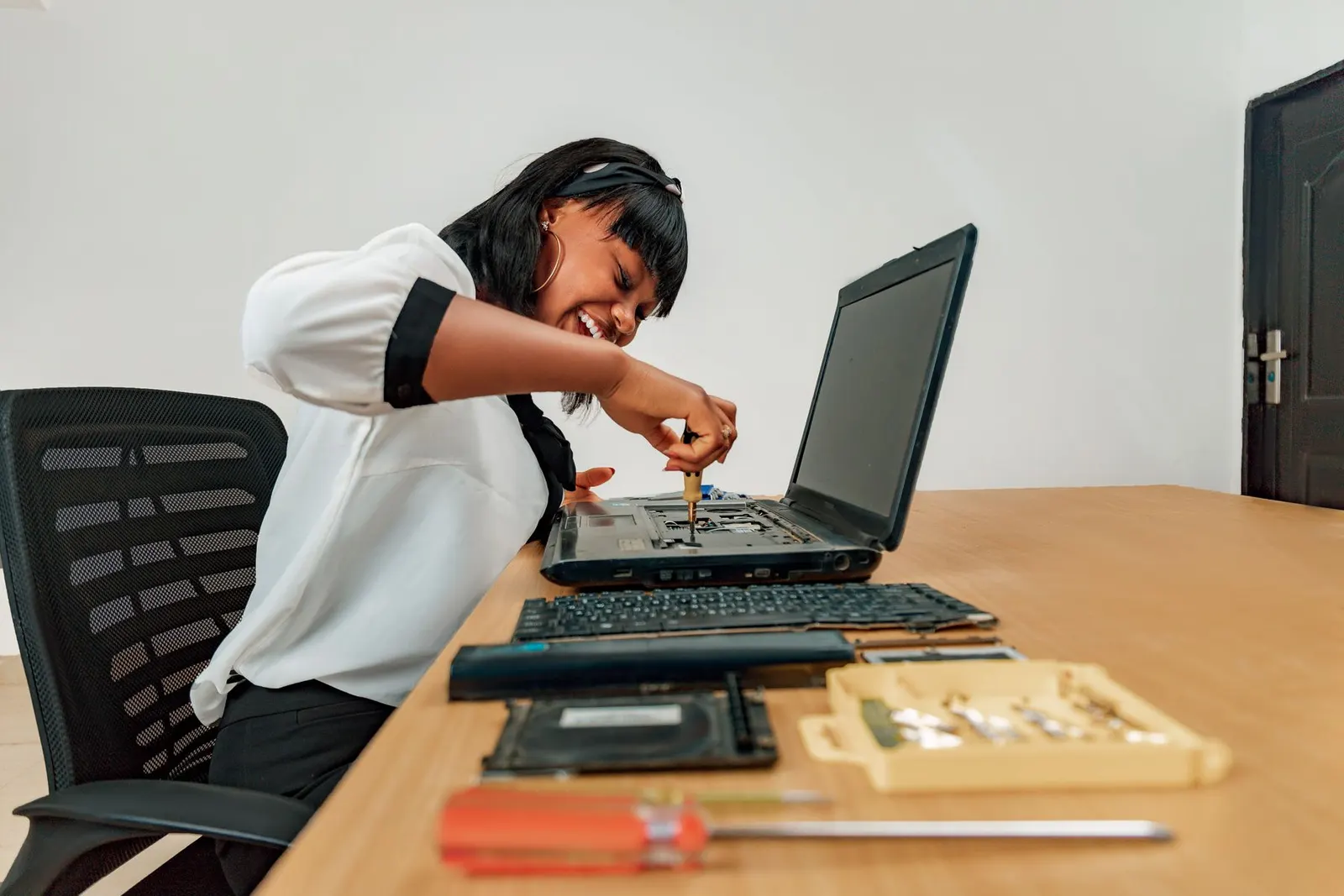
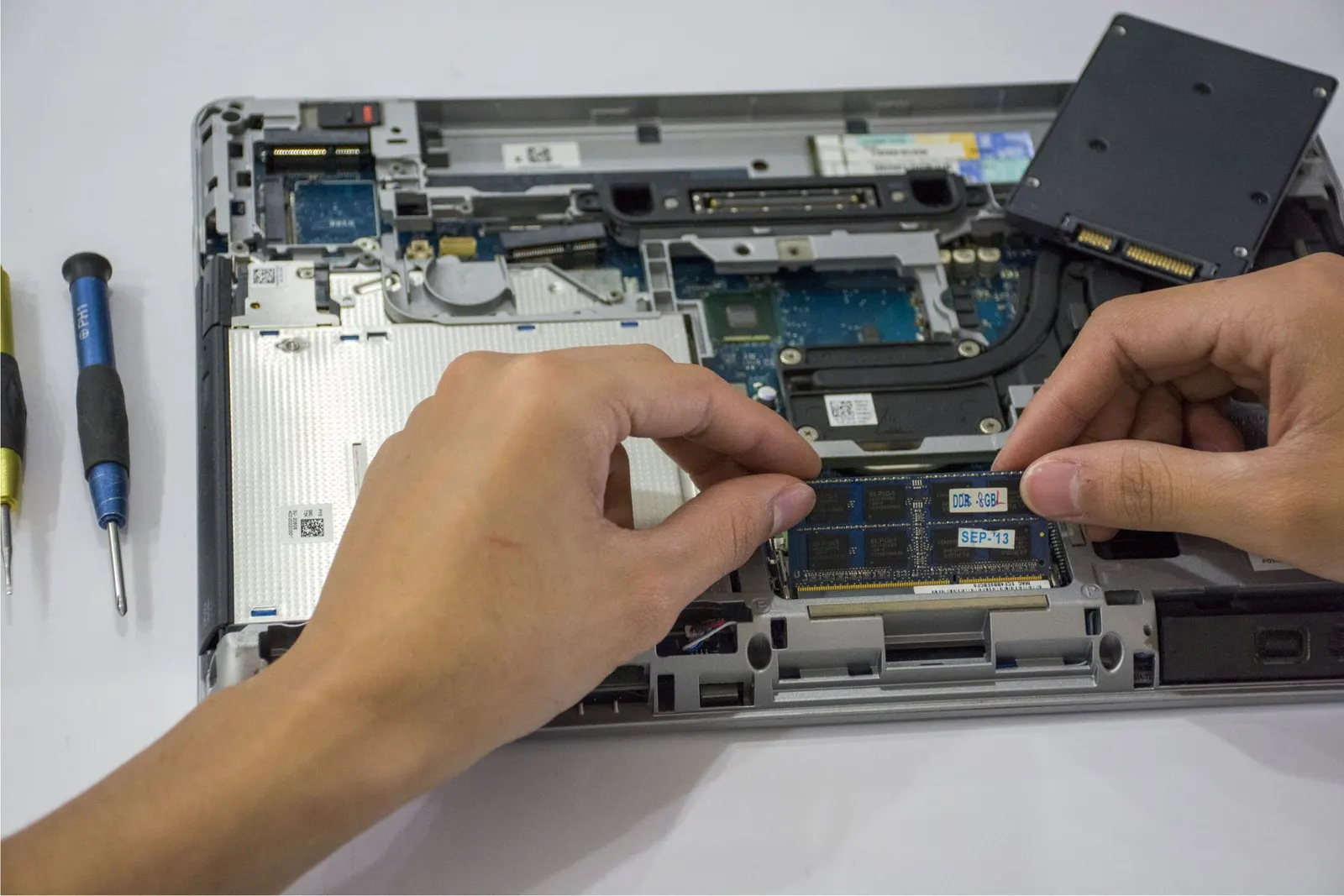
At our shop we first confirm the fault with the steps above, then open the laptop to check the Wi-Fi card, its seating in the slot, and both antenna cables and connectors. Common outcomes are:
| Finding | Typical fix |
|---|---|
| Antenna cable unclipped or damaged | Re-seat or replace the antenna cable |
| Wi-Fi card loose in its slot | Re-seat and secure the card |
| Failed Wi-Fi card (removable type) | Replace with a compatible card for your model |
| Wireless chip soldered to the board | Board-level check; a USB Wi-Fi adapter can be a practical alternative |
Many laptops use a removable M.2 Wi-Fi card, but some thin models have the wireless chip soldered to the motherboard, which changes the options. We tell you which type your laptop has and the exact price after our free check-up, before any work begins. Every part repair comes with our warranty on the part and labour; the period depends on the part.
Wi-Fi Problems on Your Phone Instead?
If it is your phone that will not connect, the steps are different. See our guide on phone not connecting to Wi-Fi. For other laptop faults, our laptop repair guide for Kota explains how we diagnose and what to bring with you.
Bring It In If the Basics Do Not Help
If you have checked Airplane mode and the wireless switch, enabled the adapter, reinstalled the driver and tried a network reset, and your laptop WiFi is still not showing networks, bring it to our Keshavpura shop with its charger. We will check the adapter, the card and the antenna cables and explain what we find before any repair.
Frequently asked questions
Why is my laptop WiFi not showing available networks?
The most common causes are Airplane mode or a hardware wireless switch, a disabled or faulty driver, or a band mismatch where your router uses 5 GHz and the laptop's adapter supports only 2.4 GHz. If your phone also cannot see the network, the router is the likely cause.
Why is the WiFi option not showing in my laptop in Windows 11?
Windows shows the Wi-Fi option only when it can see a working wireless adapter. Check Device Manager to see whether the adapter is disabled or has a warning icon, restart the WLAN AutoConfig service and reinstall the driver. If the adapter is missing from Device Manager entirely, the card may have a hardware fault.
Will a network reset delete my files?
No. A network reset removes and reinstalls network adapters and returns network settings to default. Your files and apps are not touched, but you will need to re-enter saved Wi-Fi passwords and may need to reinstall VPN software.
My laptop shows WiFi only near the router. Is that a hardware problem?
It can be. Very weak signal everywhere except right beside the router often points to a loose or damaged antenna cable, especially after a screen or hinge repair. Rule out the router first by checking signal on another device in the same spot.
Can a laptop WiFi card be replaced?
On many laptops, yes, because the Wi-Fi card is a small removable M.2 module. Some thin laptops have the wireless chip soldered to the motherboard. We confirm which type your laptop has during the free check-up before suggesting a fix.
Questions & comments
Ask our Kota technicians anything about this repair. All posts are reviewed before they appear. For an urgent quote, WhatsApp us.
No comments yet, be the first to ask a question.
Leave a comment or ask a question
First, verify your email. We send a 6-digit code so we know you are a real person. Your email is never shown publicly.
Enter the 6-digit code we emailed to .