
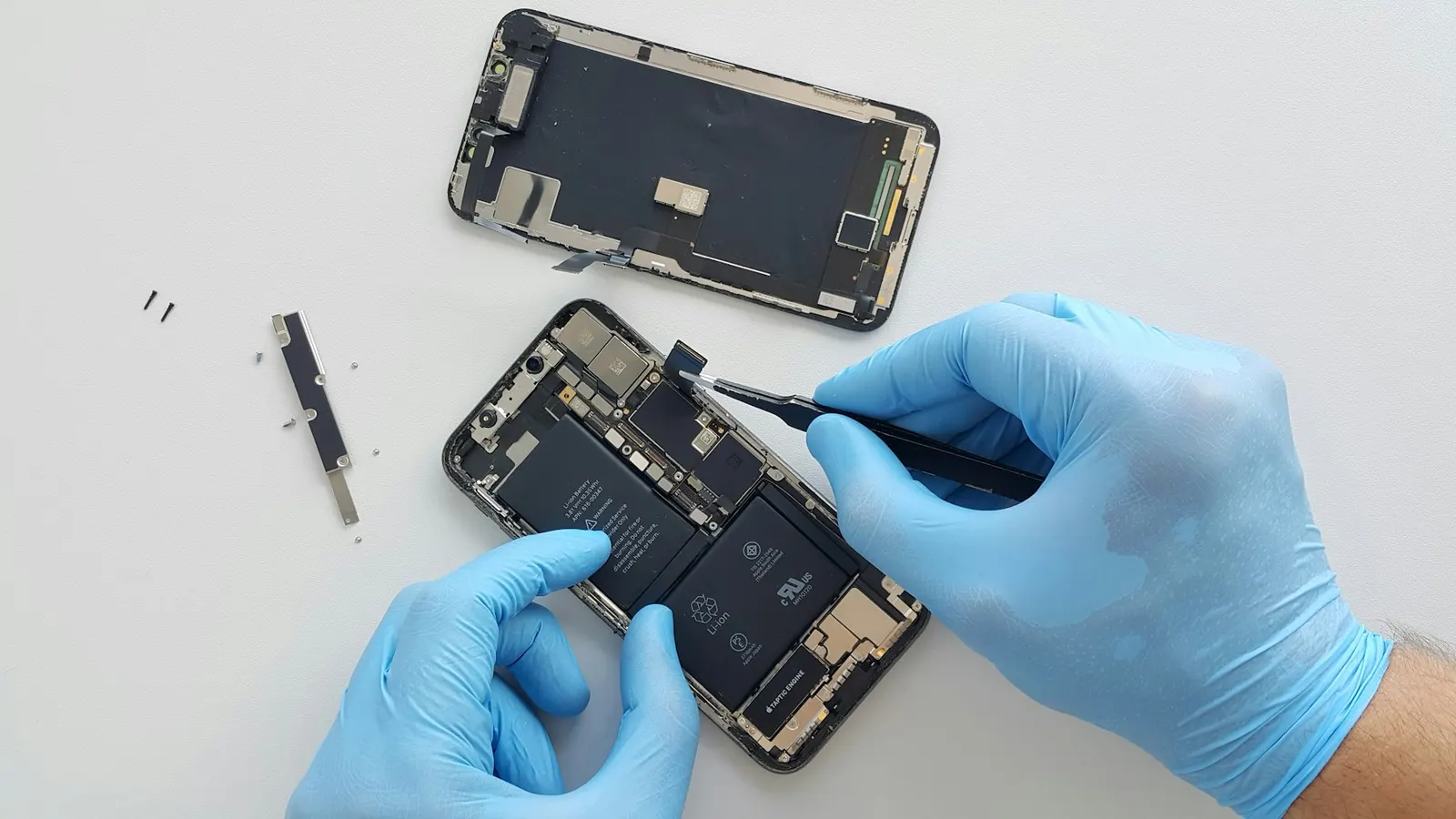
A power button not working on your phone is a bigger problem than it sounds: you cannot lock the screen, restart, switch off, or in some cases even wake the phone. The button might feel soft and do nothing, stay pressed in, work only if you press hard at an angle, or be completely dead. This guide explains how to keep using the phone without the button, how to tell what has gone wrong, and what a repair usually involves. Most of the workarounds below are built into Android and iPhone, so you do not need any extra app.
First, What Is the Button Doing?
The symptom tells you a lot about the cause:
- Button feels normal but does nothing. The small switch underneath, or the flex cable that connects it, may have failed. Software can also cause this, so a restart is worth trying first.
- Button is stuck in, or feels mushy. Dirt, sticky residue from a spill, a swollen case or a bent frame can hold the button down. A button that stays pressed can make the phone restart again and again or open the power menu or voice assistant by itself.
- Button works only if pressed hard or at an angle. The switch is wearing out, or the button cap has shifted.
- Button stopped after a drop or water exposure. The frame, switch or flex cable may be damaged, or corrosion may have formed on the contacts.
If your phone keeps rebooting by itself, a stuck button is one possible cause among several; our guide on phone restarting randomly covers the others.
Quick Checks Before Anything Else
- Remove the case. A tight or damaged case can press the button permanently, or stop it from being pressed fully. Test the button with the case off.
- Look and feel around the button. Check for dirt, lint, dried liquid or a gap between the button and the frame. You can gently clean around the edge with a soft dry brush. Do not push metal pins into the gap or spray liquid cleaners into the frame.
- Restart the phone without the button. A software freeze can make a working button look dead. The methods below let you restart without pressing it.
- Update the software. If the button works sometimes, install pending system updates once the phone is usable.
How to Use Your Phone Without the Power Button
Android
- Lock the screen and more with the Accessibility Menu. On Android, open Settings, Accessibility, Accessibility Menu and turn on its shortcut. Google's page Use the Accessibility Menu lists what it can do, including locking the screen, adjusting volume, taking screenshots and opening Quick Settings. On some phones the same setting sits under Installed apps or Interaction controls within Accessibility.
- Switch off or restart from Quick Settings. On many recent Android phones, including Pixel and Samsung models, swiping down from the top of the screen to open the full Quick Settings panel shows a power icon that opens the power-off and restart menu. Where exactly it sits depends on the brand and software version.
- Wake the screen without the button. Many phones offer double tap to wake, lift to wake or a fingerprint sensor that works with the screen off. Look under Display or Advanced features in Settings.
- Scheduled power on and off. Some brands, including several Android skins sold in India, offer a scheduled power on/off option in Settings. It is not available on every phone.
iPhone
- Turn on AssistiveTouch. Open Settings, Accessibility, Touch, AssistiveTouch. Apple's page Use AssistiveTouch on your iPhone, iPad or iPod touch explains that its on-screen menu can lock the screen, adjust volume and restart the device.
- Switch off from Settings. On iPhone, Settings, General, Shut Down turns the phone off without any button.
- Raise to Wake and tap to wake. On supported models, these let you wake the screen without the side button.
If the Phone Is Already Switched Off
This is the hardest case. With the phone off and the button dead, there is no software menu to use. On many phones, connecting the charger shows a charging screen, and some models start up fully when connected to power or when the battery is completely flat and then charged. Others need a button press no matter what. Try connecting the original charger and waiting, but if the phone does not start, the button or its flex cable needs repair. Avoid opening the phone yourself to short the contacts: modern phones are glued, and it is easy to damage the screen, battery or flex cables.
What Causes the Power Button to Fail
- Wear. The power button is the most pressed physical button on the phone, and the tiny dome switch underneath wears out over time.
- Drops. A fall on the side of the phone can bend the frame or crack the switch. Our guide on bent phone frames explains how frame damage affects buttons.
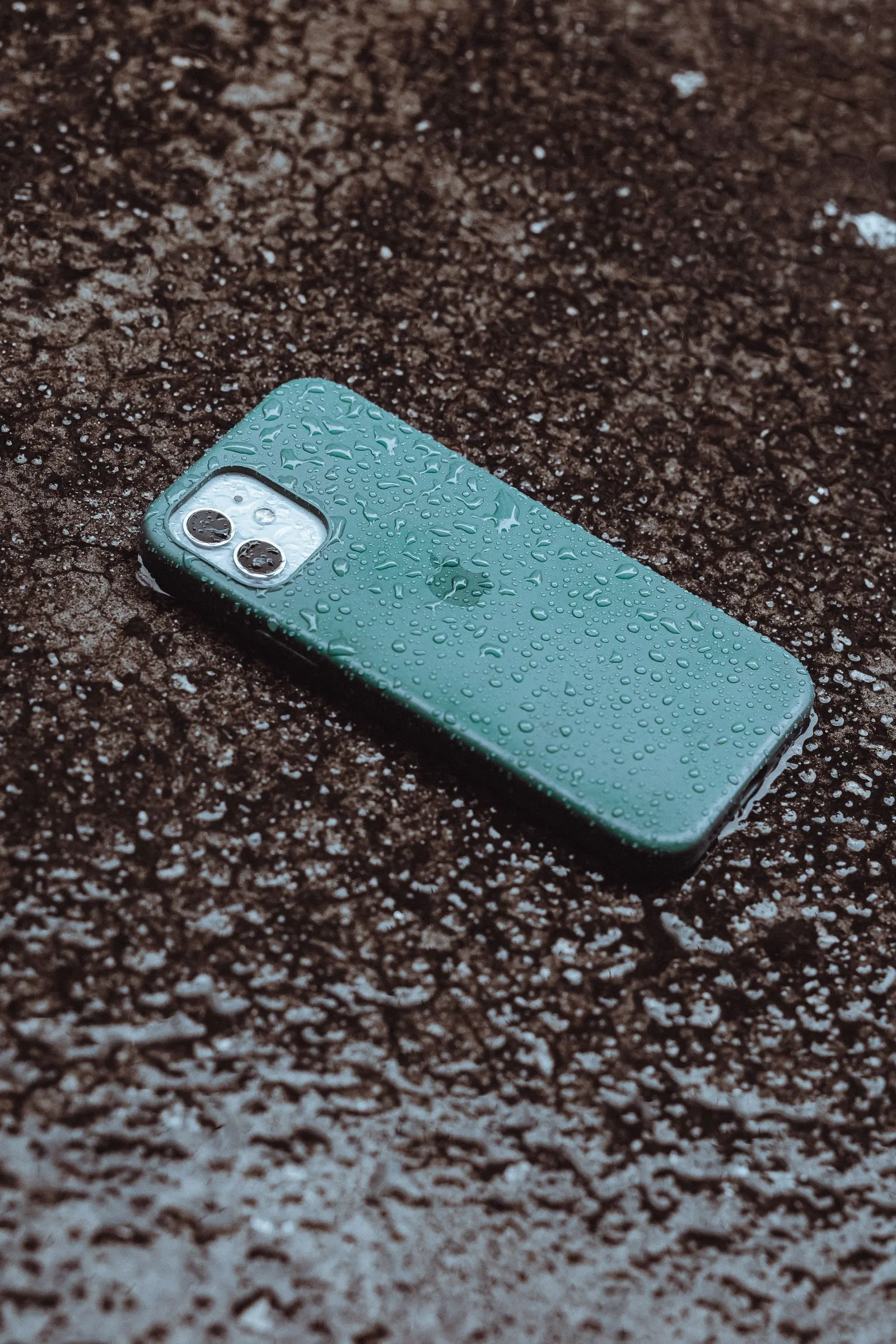
- Liquid and dirt. Sweat, spills and dust collect around the button and can corrode the contacts. If the phone got wet, see our water damaged phone guide first.
- Fingerprint-sensor buttons. On many phones the power button doubles as the fingerprint sensor. A fault can affect one function, the other, or both.
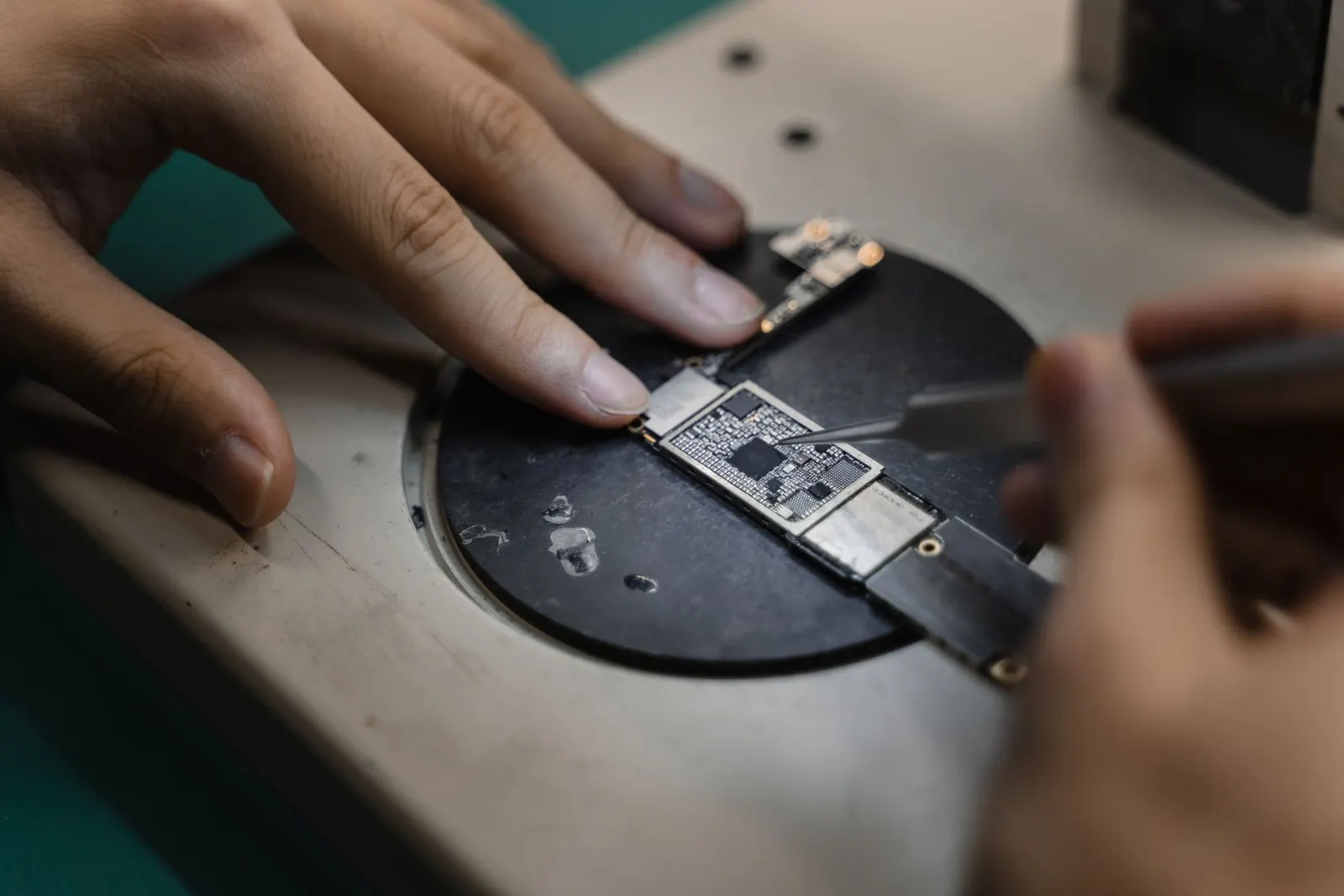
- Board-level faults. Less often, the problem is on the motherboard, for example a damaged connector or a fault in the power circuit. This is checked when the button and flex cable test fine.
How Power Button Repair Works
At our Keshavpura shop we first confirm whether the button, the switch, the flex cable or the board is at fault. The usual repair paths are:
| Finding | Typical repair |
|---|---|
| Dirt or residue around the button | Clean the button area and contacts |
| Worn or broken switch on a flex cable | Replace the power button flex cable |
| Fingerprint sensor built into the button | Replace the button and sensor assembly, matched to your model |
| Bent frame or shifted button cap | Straighten or replace the button cap and check the frame |
| Fault on the motherboard | Board-level diagnosis and micro-soldering |
On some phones the button flex is reached from the back, on others the screen has to come off first, which affects the work involved. On phones where the fingerprint sensor is paired to the board, a non-original sensor may not work for fingerprints, and we tell you this before starting. The exact price is confirmed after our free check-up. Every part repair comes with our warranty on the part and labour; the period depends on the part. If your phone is still under the maker's warranty and has no physical or liquid damage, the maker's authorised service is worth contacting first.
While You Wait for Repair
Set up the Accessibility Menu or AssistiveTouch now, while the phone is on, so you are not stuck later. Keep the phone charged, because a phone that dies with a dead button may not start again until it is repaired. And back up your photos and contacts, as you should before any repair; our backup guide shows how.
Frequently asked questions
How do I switch off my phone if the power button is not working?
On many recent Android phones, open the full Quick Settings panel and tap the power icon. On iPhone, go to Settings, General, Shut Down. Where the power icon sits on Android depends on the brand and software version.
How can I turn on my phone without the power button?
If the phone is already off, there is no reliable software way. Connecting the charger starts some models or shows a charging screen, but many phones still need a button press. If it does not start on the charger, the button or its flex cable needs repair.
Why does my phone keep restarting after the power button got stuck?
A button that stays pressed sends a constant power signal, which can force restarts or open the power menu repeatedly. Remove the case and check for dirt or a bent frame. If it is still stuck, the switch or button cap needs repair.
Can I lock my phone screen without the power button?
Yes. On Android, turn on the Accessibility Menu, which has a Lock screen option. On iPhone, turn on AssistiveTouch, which also has a Lock Screen control. Many phones also lock automatically after the screen timeout.
Will a power button repair affect my fingerprint sensor?
It can on phones where the fingerprint sensor is built into the power button. The sensor may need to be replaced with the button, and on some models a non-original sensor will not work for fingerprints. We explain this before starting.

Questions & comments
Ask our Kota technicians anything about this repair. All posts are reviewed before they appear. For an urgent quote, WhatsApp us.
No comments yet, be the first to ask a question.
Leave a comment or ask a question
First, verify your email. We send a 6-digit code so we know you are a real person. Your email is never shown publicly.
Enter the 6-digit code we emailed to .