
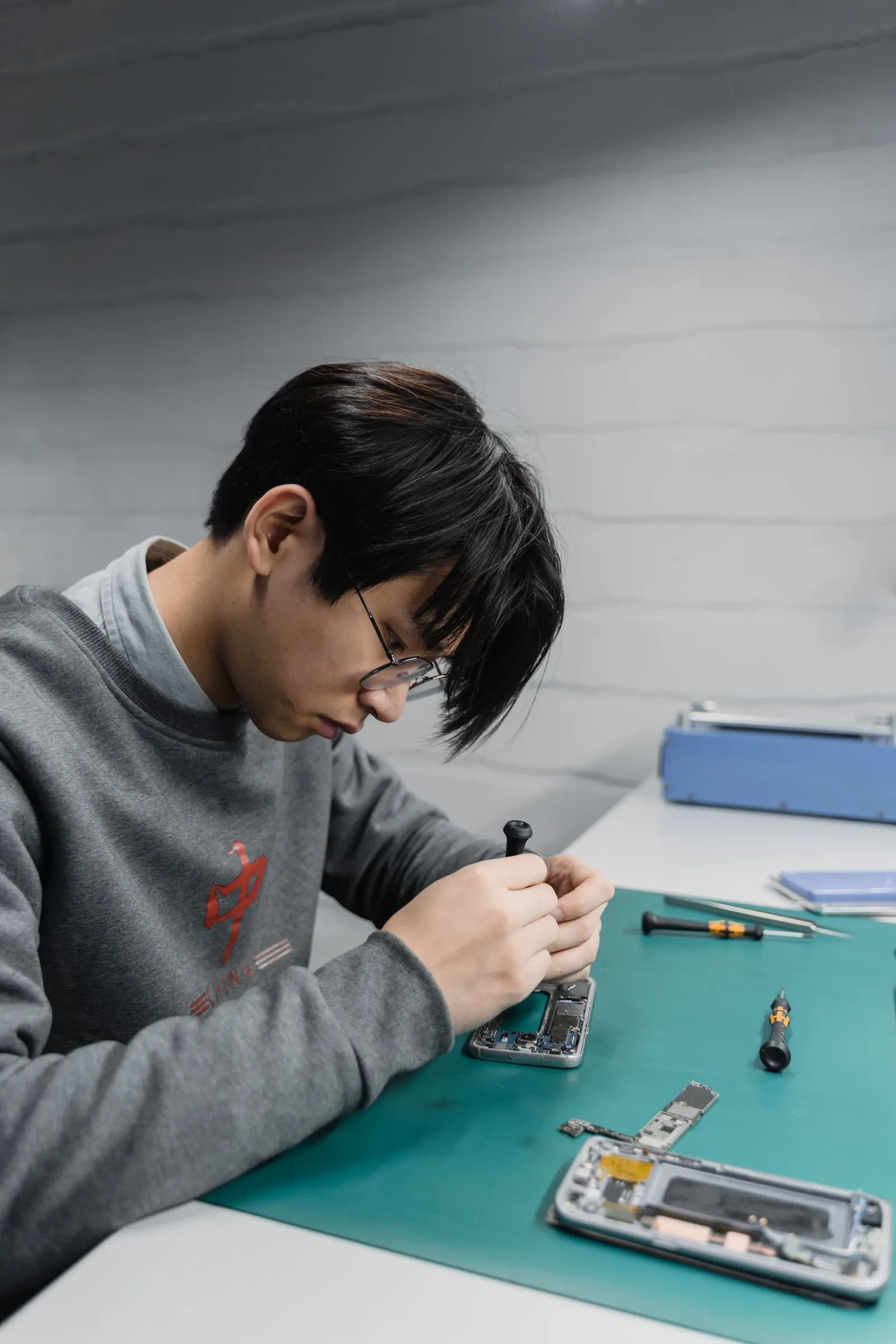
Getting a new phone is exciting, but the thought of moving all your data can feel overwhelming, especially when you have years of photos, important contacts, and active WhatsApp groups. At our Keshavpura shop in Kota we help customers with this every week. With the right steps, it is straightforward and you will not lose a single message.
Before You Start: A Quick Checklist
- Charge both phones to at least 60% before starting.
- Make sure your old phone is connected to Wi-Fi, most transfer methods use internet or cable.
- Note your Google account email and password; you will need it on the new phone.
- Write down or screenshot any two-factor authentication (2FA) app codes you use.
Method 1: Android to Android (Google Backup + Switch Apps)
This is the easiest method. On your old phone, go to Settings > Google > Backup and tap Back Up Now. Wait for it to complete. When you set up your new Android phone, sign in to the same Google account and choose to restore from backup. Contacts, calendar, app list, call history, and most settings transfer automatically.
Many brands also offer their own cable-based transfer tool. Samsung has Smart Switch, OnePlus has Phone Clone, Xiaomi has Mi Mover. These are faster for large files because they work over a direct cable or Wi-Fi hotspot rather than the internet, very useful when mobile data is slow.
Method 2: WhatsApp Backup and Restore
WhatsApp data is not included in a standard Google Backup. You must back it up separately. On your old phone open WhatsApp, go to Settings > Chats > Chat Backup and tap Back Up. Choose Google Drive as the destination. On your new phone, install WhatsApp, verify the same mobile number, and it will offer to restore from Google Drive. The restore can take a while if you have years of media.
If you are switching from Android to iPhone or vice versa, WhatsApp offers an official Move to iOS feature (for Android-to-iPhone) or a Move to Android feature (for iPhone-to-Android). Both require a cable and work during the initial setup phase of the new phone.
Method 3: iPhone to iPhone (iCloud)
Back up your old iPhone: go to Settings > [Your Name] > iCloud > iCloud Backup > Back Up Now. During setup of the new iPhone, choose Restore from iCloud Backup and sign in with the same Apple ID. Everything, photos, apps, settings, health data, transfers automatically. Make sure you have enough iCloud storage (the free tier is 5 GB; you may need to upgrade temporarily).
Alternatively, use Quick Start, hold both iPhones close together during the new iPhone's setup and follow the on-screen prompts. This transfers data directly over Wi-Fi or a cable without needing iCloud space.
Method 4: Manual Photo and File Transfer
If you only need to move photos and videos, the simplest approach is to copy them to a PC or laptop first, then copy to the new phone via USB. Alternatively, upload to Google Photos on the old phone and then download on the new one. Google Photos offers free unlimited storage for compressed quality images.
Common Data That Needs Special Attention
| Data Type | Transfers via Google? | Extra Step Needed? |
|---|---|---|
| Contacts | Yes (synced) | None |
| Photos and videos | Via Google Photos | Enable sync on old phone first |
| WhatsApp chats | No, separate backup | Back up to Google Drive |
| App data / games | Partial | Log in again; cloud save varies |
| SMS messages | Partial | Use SMS Backup app for full history |
| Authenticator app codes | No | Export before switching |
Coaching Students in Kota: Extra Tips
If you use study apps like ALLEN, Aakash, or Unacademy, note that most stream content linked to your login, you just sign back in on the new device. Downloaded offline content will need to be re-downloaded. Similarly, banking apps like PhonePe and GPay require re-verification on a new phone, have your registered SIM ready and your PIN or MPIN noted.
If you get stuck at any step, or if your old phone is too damaged to back up normally, perhaps it stopped turning on, bring both phones to us at our Keshavpura shop. We have tools to extract data even from phones that will not boot, and we will transfer everything safely before you hand in the old device.
Frequently asked questions
Will my WhatsApp messages transfer if I just sign in on the new phone?
No. WhatsApp messages are stored locally on the device and are not included in a standard Google Backup. You must manually back up to Google Drive from within WhatsApp before switching phones, then restore on the new one.
I forgot to back up my old phone and it stopped working. Can you still recover the data?
Sometimes, yes. If the phone still powers on partially, we may be able to extract a backup. If the motherboard is damaged, data recovery depends on the type of storage chip. Come in for a free check-up and we will tell you what is possible.
Does transferring data delete it from the old phone?
No, all standard transfer methods copy the data, they do not move it. Your old phone keeps everything until you choose to factory reset it. We recommend keeping the old phone for a week after switching, just to confirm nothing was missed.
How long does a full phone data transfer take?
Over Google Backup and restore, expect 30-90 minutes depending on your data size and internet speed. Cable-based methods like Samsung Smart Switch or Quick Start for iPhone are typically faster, usually 15-40 minutes for most users.
Can I transfer data from an Android phone to an iPhone?
Yes. Apple's official Move to iOS app on Android makes this easy during the iPhone's initial setup. WhatsApp also has an official Android-to-iPhone transfer feature that works via cable.
Questions & comments
Ask our Kota technicians anything about this repair. All posts are reviewed before they appear. For an urgent quote, WhatsApp us.
No comments yet, be the first to ask a question.
Leave a comment or ask a question
First, verify your email. We send a 6-digit code so we know you are a real person. Your email is never shown publicly.
Enter the 6-digit code we emailed to .